
Bulk listing on eBay means uploading multiple product listings in a single session rather than creating each one manually. AI-assisted tools take this further by scanning your product photos and automatically generating titles, categories, and item specifics, turning a stack of images into near-complete drafts in seconds. For sellers managing dozens or hundreds of SKUs across multiple marketplaces, that shift from manual entry to automated drafting is where real time savings happen.
Key advantages of bulk listing on eBay:
-
Speed: Get inventory live faster by processing batches of photos in one session
-
Consistency: AI-generated drafts follow a uniform structure across all listings
-
Scale: Handle hundreds of items without proportionally increasing your workload
-
Cross-marketplace reach: Sync listings to other platforms from a single workflow
-
Error reduction: Structured templates and AI suggestions minimize missing fields
eBay does apply listing limits based on seller tier, so newer accounts may have lower monthly caps. As your seller metrics improve, those limits increase.
Table of Contents
-
How AI-assisted bulk listing tools actually improve your efficiency
-
Best practices for managing cross-marketplace inventory with bulk listings
-
Common challenges when bulk listing on eBay and how to fix them
-
eBay policies and compliance for bulk listing and AI automation
-
SpareDollar gets your eBay inventory live faster, across every platform
How to bulk list on eBay using AI-assisted tools
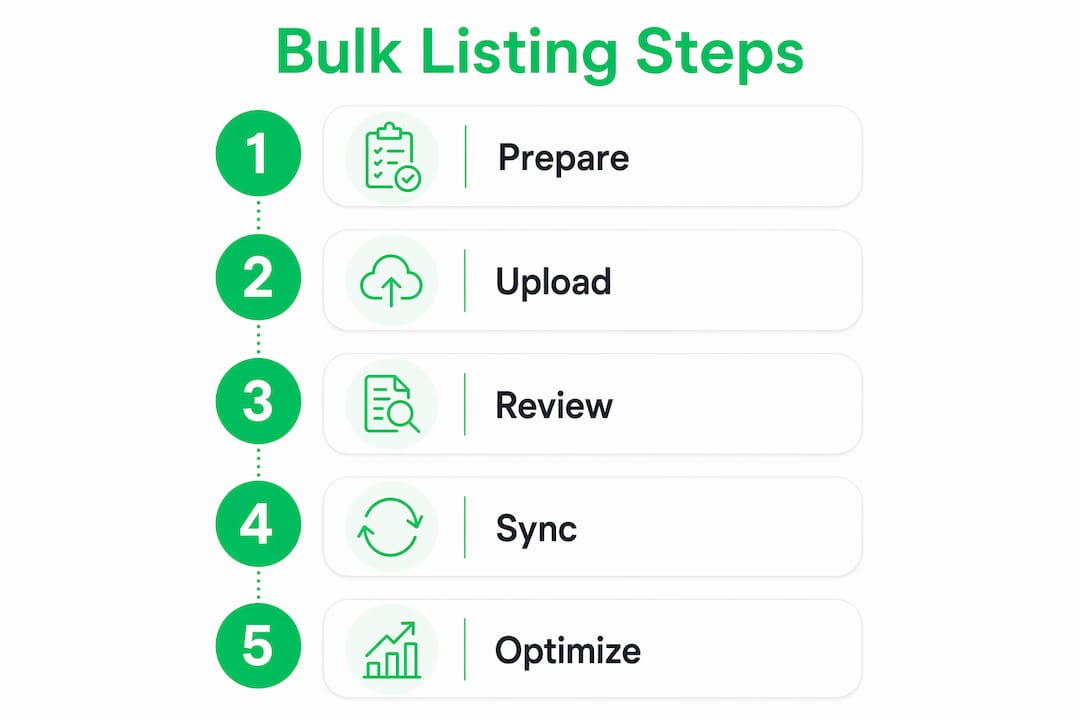
The process is more straightforward than most sellers expect. Here is a step-by-step walkthrough using an AI-powered interface tool:
-
Prepare your photos. Organize images by product before uploading. Group all angles of one item together so the AI can associate them correctly. Clear, well-lit photos produce more accurate AI suggestions.
-
Upload your batch. Select your photo folder and upload the entire batch in one session. Tools like SpareDollar can process hundreds of photos per batch, scanning each image to identify the product.
-
Review AI-generated drafts. The tool suggests a title, category, and item specifics for each listing. Check these carefully, especially for branded or niche items where the AI may misread a detail.
-
Edit where needed. Adjust pricing, condition, shipping options, and any specifics the AI got wrong. This is your quality gate before anything goes live.
-
Publish or schedule. Submit the batch to eBay. Most interface tools let you publish immediately or queue listings for a specific time.
Tips for batching efficiently:
-
Name photo files with the product name or SKU before uploading
-
Keep batches under 200 items if you are new to the workflow
-
Run a small test batch first to calibrate how the AI handles your product category
Pro Tip: Never skip the manual review step, even when you are in a rush. AI tools occasionally misidentify a product’s category or pull the wrong item specifics, and a listing with wrong details costs you more time to fix after it goes live than it would have taken to catch it upfront.

Advanced bulk listing methods for high-volume pro sellers
If you are moving serious volume, the browser-based interface approach will eventually hit its ceiling. That is when feed-based uploads and API integrations become the right tools.
Feed-based management uses CSV or XML files to define your listings in bulk. You build a spreadsheet with all required fields, map them to eBay’s schema, and upload the file. This method gives you precise control over every field and works well for sellers with structured product databases. You can also download reports programmatically to audit listing status.
API integration goes a step further. Asynchronous API bulk uploads process in the background, so you are not waiting on a browser tab to finish. This eliminates the bottlenecks that plague interface tools when you are pushing thousands of listings at once.
Key capabilities of feed and API methods:
-
Schedule uploads to run during off-peak hours
-
Download status reports to catch failed listings automatically
-
Integrate directly with your inventory management system
-
Handle complex product variations and multi-variation listings
-
Support programmatic price updates across your entire catalog
These options are typically reserved for Pro-tier sellers on eBay. If you are not yet at that tier, the AI interface tools covered above will handle most use cases until you get there.
How AI-assisted bulk listing tools actually improve your efficiency
The clearest gain is in the drafting phase. Manually entering a title, category, condition, and a dozen item specifics for each product is tedious and error-prone. AI tools transform raw image uploads into near-complete listings, cutting that manual entry down dramatically.
Time savings in focus: AI-assisted bulk listing tools produce drafts ready to publish in seconds per upload batch, compared to several minutes of manual entry per item. This efficiency gain means sellers can have listing drafts ready almost instantly, making scaling their inventory much faster.
Beyond speed, AI suggestions tend to improve listing quality. The tool pulls category-appropriate item specifics you might have overlooked, which helps eBay’s search algorithm surface your listings to the right buyers.
SpareDollar’s AI-enabled features for eBay sellers include:
-
Automated item specifics populated from product images
-
Price recommendations based on market data
-
Barcode scanning to pull product details instantly
-
Inventory sync across eBay and other supported marketplaces
-
Per-channel pricing so you can set different prices on each platform
-
Auto-delist on sale to prevent overselling
-
Free imports from eBay, Poshmark, Depop, Mercari, and Shopify
For cross-marketplace sellers, that last point matters most. SpareDollar’s inventory sync keeps quantities accurate across channels without manual updates after every sale.
Best practices for managing cross-marketplace inventory with bulk listings
Getting listings live is only half the job. Keeping inventory accurate across multiple platforms is where most sellers run into trouble.
Organize before you upload. Structure your photo folders and data files by product category or SKU range. Thorough organization before bulk listing reduces errors during the upload and makes AI drafting more accurate.
Sync quantities in real time. When you sell an item on one platform, that quantity needs to update everywhere else immediately. Manual syncing is not realistic at scale.
Monitor listing statuses regularly. Check for suppressed or ended listings at least weekly. eBay will suppress listings that violate policy or have missing required fields, and those suppressions are easy to miss in a large catalog.
Use per-channel pricing. Fees differ across marketplaces. Set prices on each platform independently to protect your margins rather than using a single price everywhere.
Pro Tip: Turn on automated delisting the moment an item sells. Overselling on one platform while the item is still live on another is one of the fastest ways to damage your seller metrics. SpareDollar’s auto-delist feature handles this automatically, so you never have to remember to pull a listing manually.
eBay’s bulk listing policies prohibit duplicate listings of the same item and require accurate item specifics. Keep your templates compliant from the start rather than cleaning up violations later.
Setting up an AI-assisted bulk listing tool for eBay
Setup for most AI-assisted tools follows the same basic pattern. For SpareDollar specifically:
-
Create your account and connect your eBay store through the OAuth authorization flow.
-
Import your existing eBay listings to populate your inventory base.
-
Configure your default shipping profiles, return policies, and pricing rules.
-
Upload your first photo batch and let the AI generate drafts.
-
Review, adjust, and publish your first bulk batch.
For feed-based tools, you will also need to download eBay’s category-specific item specifics templates and map your data columns to eBay’s required fields before your first upload.
Common challenges when bulk listing on eBay and how to fix them
AI misclassifies a product. This happens most often with generic or multi-use items. Fix it by correcting the category manually in the draft and adding more descriptive photos for future batches.
Listings get suppressed after publishing. Usually caused by missing required item specifics for that category. Download the suppressed listings report from Seller Hub, identify the missing fields, and relist.
Inventory counts go out of sync. Almost always a sign that auto-delist is not enabled or that one platform is not connected to your sync tool. Audit your integrations and confirm the connection is active.
Feed upload fails validation. CSV files often fail because of formatting errors, extra spaces, or incorrect field values. Validate your file against eBay’s template before uploading.
eBay policies and compliance for bulk listing and AI automation
eBay prohibits listing the same item multiple times to inflate search visibility. Each physical item gets one listing. AI tools do not exempt you from this rule, so review your batches for accidental duplicates before publishing.
Item specifics accuracy is enforced more strictly than many sellers realize. eBay uses these fields to match listings to buyer searches, and inaccurate specifics can result in listing removal. AI-generated specifics should always be verified against the actual product.
For AI-generated content specifically, eBay’s policies require that listing descriptions be accurate and not misleading, regardless of how they were created. You are responsible for what goes live under your account.
What AI-assisted bulk listing tools cost
Pricing models vary, but most AI-assisted tools use one of two structures: a monthly subscription tied to listing volume, or a credit-based system where you buy listing packs as needed.
SpareDollar uses a tiered subscription model based on how many new listings you create per month, with a free trial to start. One-time listing credit packs are also available for sellers who need extra volume in a given month without upgrading their plan. Full details are on the SpareDollar pricing page.
The cost math is straightforward: if the tool saves you meaningful time per listing and helps you get inventory live faster, the subscription pays for itself at relatively low volume.
SpareDollar gets your eBay inventory live faster, across every platform
If you are listing on eBay and selling across multiple platforms, the real cost is not the tool. It is the hours spent re-entering the same product data on every channel.
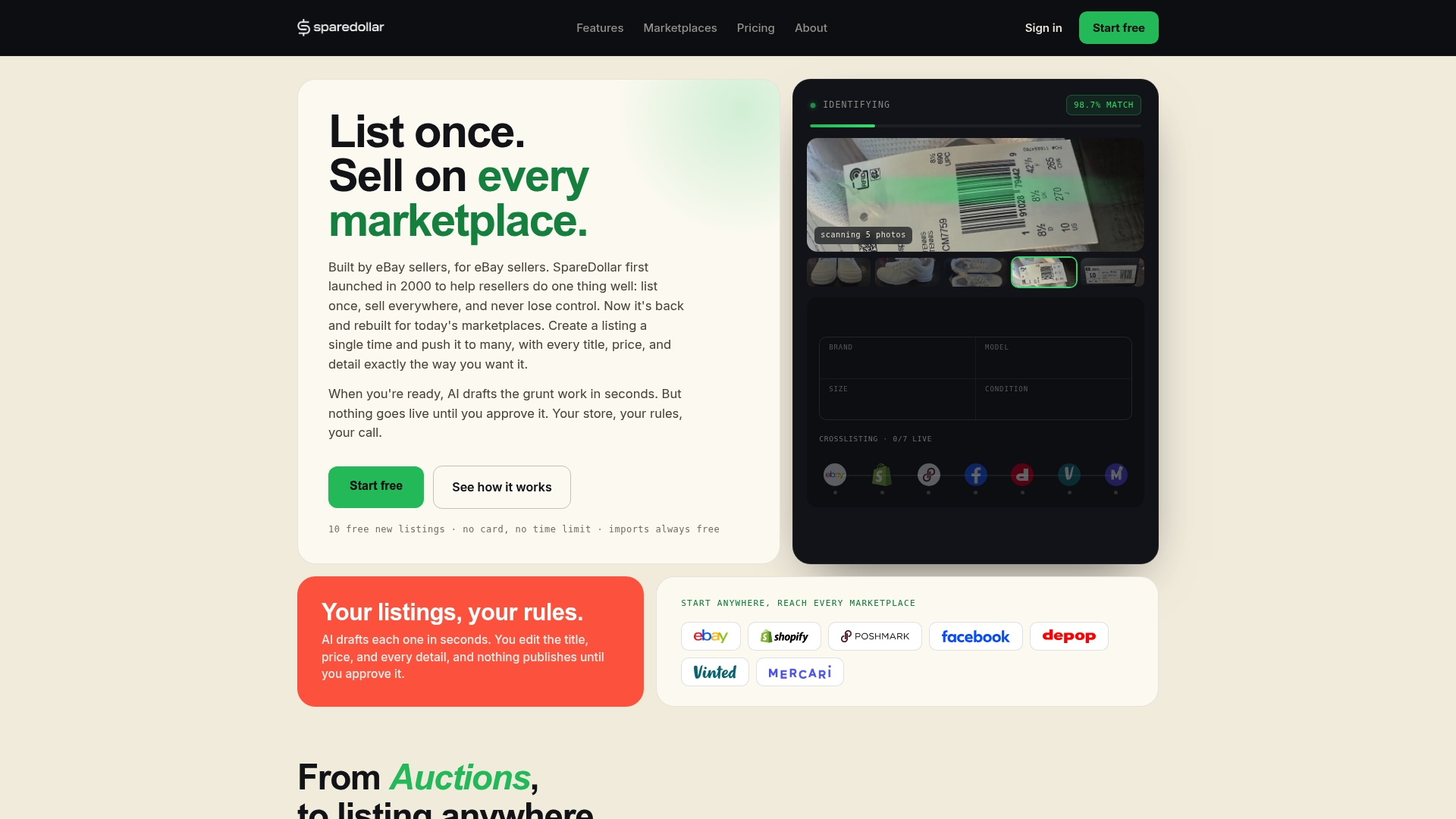
SpareDollar solves that by letting you create one listing and push it to every marketplace you sell on, with per-channel pricing and automatic delisting when something sells. The AI handles the drafting from your photos, you review and approve, and the listing goes live. No re-keying data. No manual inventory updates after each sale. SpareDollar’s eBay-specific tools are built around how eBay’s item specifics and category system actually work, which means fewer suppressed listings and less cleanup. Start your free trial and see how many hours your next batch saves you.
Key Takeaways
AI-assisted bulk listing on eBay is the fastest way to scale your inventory without scaling your manual workload, and tools built specifically for eBay’s item specifics system produce the fewest errors.
| Point | Details |
|---|---|
| AI drafts from photos | Upload a batch of product images and get near-complete listing drafts in seconds, ready to review and publish. |
| Manual review is non-negotiable | AI occasionally misidentifies categories or item specifics; always verify drafts before publishing to avoid suppressed listings. |
| API and feed tools for high volume | Pro-tier sellers use CSV/XML feeds and asynchronous API uploads to avoid browser bottlenecks at scale. |
| Auto-delist prevents overselling | Enabling automatic delisting when an item sells is the single most important safeguard for cross-marketplace inventory accuracy. |
| SpareDollar for eBay cross-listing | SpareDollar automates item specifics, syncs inventory across marketplaces, and auto-delists sold items, with tiered plans and a free trial available. |