
eBay Shipping Profiles are reusable shipping rule sets saved inside eBay’s Business Policies. Set your rates, handling time, and carrier options once, then attach that profile to every relevant listing instead of re-entering the same details hundreds of times. Sellers who use Business Policies report saving significant time each week after the initial setup, which generally requires investing some time upfront.
Here’s the fastest path to your first profile:
- Step 1: Go to My eBay > Account > Business Policies and opt in if you haven’t already. Some accounts are auto-enrolled; others need to request access through the Business Policies opt-in form.
- Step 2: Click Create policy > Shipping, fill in your domestic and international options, handling time, and services, then save.
- Step 3: Open any listing, find the Shipping section, and select your new profile from the dropdown.
That’s it. The rest of this guide covers the details that protect your margins and keep buyers happy.
Table of Contents
- What are eBay shipping profiles and where do you find them?
- How do you create a shipping profile on eBay step by step?
- Calculated shipping vs. flat rate: which one should you use?
- How do rate tables protect your margins on heavy or distant shipments?
- How do you apply, edit, and bulk-manage shipping profiles across listings?
- Why aren’t your shipping profiles showing up? Common fixes
- Why standardizing shipping with profiles saves time and protects profit
- Key Takeaways
- Real-world habits that prevent shipping headaches
- SpareDollar cuts the repetition out of shipping profile management
- Official links and further reading (U.S.-focused)
- FAQ
What are eBay shipping profiles and where do you find them?
Shipping Profiles live inside Business Policies, which you reach through My eBay > Account > Business Policies. If you don’t see Business Policies in that menu, your account isn’t opted in yet. Either call eBay support or submit the Business Policies opt-in form directly. Some sellers were enrolled automatically; others weren’t, and there’s no obvious error message to tell you which camp you’re in.
Once you’re inside Business Policies, you’ll see three policy types: payment, return, and shipping. Shipping Profiles handle everything related to how a buyer receives their item — carrier, service level, handling time, flat or calculated rates, and any regional surcharges. Each profile you create can be applied to as many listings as you want, and editing the profile later updates every listing attached to it.
How do you create a shipping profile on eBay step by step?
Navigate to My eBay > Account > Business Policies > Create policy > Shipping. Work through each field in order:
Profile name. Use a naming convention you’ll still understand six months from now. “Small US — Free Ship” or “Heavy Items — Rate Table” beats “Shipping 1” every time. Good names make bulk edits fast and safe.
Domestic shipping. Choose flat rate, calculated, or freight. Flat rate is a fixed dollar amount regardless of where the buyer lives. Calculated pulls live carrier rates based on the buyer’s ZIP code and your package dimensions. Pick one here — the next section covers when each makes sense.
Domestic services. Add at least two service options (e.g., USPS Ground Advantage and Priority Mail) so buyers have a choice. Specify the carrier, service name, and cost for each.
Handling time. eBay defaults every new listing to two days. Set this explicitly in the profile to match your actual workflow. Leaving it at the default when you ship same-day is a missed opportunity; leaving it at two days when you ship weekly is a dispute waiting to happen.
Package type and dimensions. Enter your typical box dimensions and weight. This is what calculated shipping uses to generate buyer quotes, so accuracy matters.
International shipping. Toggle this on if you ship outside the US. Select the regions you cover, the services you offer, and whether you use eBay’s Global Shipping Program or handle international fulfillment yourself.
Pro Tip: Name profiles with a category and service hint from the start — for example, “Books — US Media Mail” or “Electronics — 2-Day Tracked.” When you have 20 profiles and need to bulk-filter, that naming convention pays for itself immediately.
Screenshot note: capture the Business Policies dashboard, the Create Shipping Policy form with all fields visible, and the domestic services dropdown. Add captions identifying each field.
Calculated shipping vs. flat rate: which one should you use?
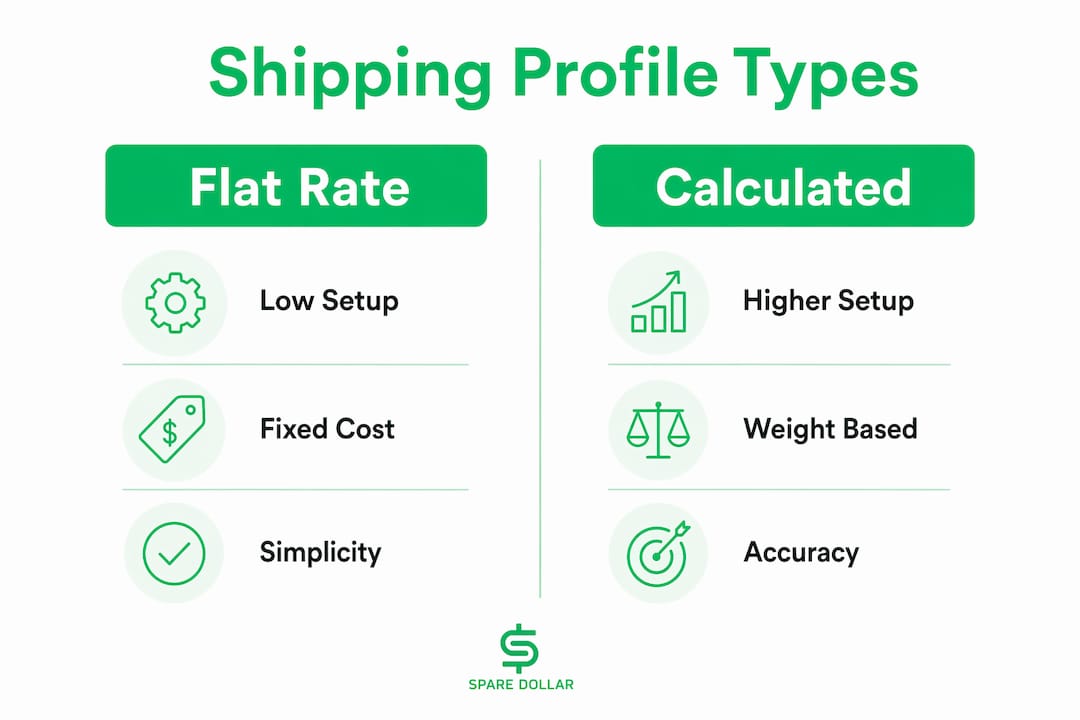
Use calculated shipping when your items vary significantly in weight or size, or when you sell heavy goods that would cost you real money to subsidize across long distances. Use flat rate when your items are light, uniform, and your margin can absorb the occasional cross-country shipment without pain.

| Factor | Flat Rate | Calculated Shipping |
|---|---|---|
| Setup complexity | Low — one number per service | Higher — requires accurate dimensions and weight |
| Buyer experience | Predictable, no surprises | Varies by ZIP; can feel unpredictable |
| Margin control | You absorb zone differences | Carrier cost passed to buyer accurately |
| Best for | Light, uniform items; free-shipping offers | Heavy, bulky, or high-value items |
| Returns handling | Simpler to communicate | May need separate return shipping policy |
Worked example — a 15 lb. item:
Shipping a 15 lb. box from Chicago to Los Angeles via USPS Priority Mail can cost significantly more than a nearby shipment. If you set a flat rate assuming most buyers are nearby, distant buyers can cost you more out of pocket. Calculated shipping charges the buyer the actual carrier rate, protecting your margin entirely. The math is simple: the heavier the item, the faster flat rate destroys your profit on distant sales.
- Flat rate works well for items under 1–2 lbs. where zone differences are small.
- Calculated shipping is worth the extra setup for anything over 3 lbs. or with irregular dimensions.
- You can offer free shipping on flat-rate profiles for light items and still come out ahead if your pricing accounts for average shipping cost.
Pro Tip: Weigh and measure your most common box sizes before you build any profile. A kitchen scale and a tape measure take two minutes. Getting this wrong means every calculated quote is wrong — and eBay’s shipping calculator uses exactly what you enter.
How do rate tables protect your margins on heavy or distant shipments?
Rate tables are the answer when weight and distance variance would otherwise eat your profit. eBay lets you set shipping costs for up to 100 regions, with up to 40 unique tables per account. That’s enough granularity to mirror actual carrier zone pricing almost exactly.
Steps to create and link a rate table:
- Go to My eBay > Account > Shipping preferences > Rate tables.
- Click Create a rate table and give it a descriptive name (e.g., “Ground — Weight Based”).
- Select your rate structure: weight-based base cost plus per-pound surcharge, item-based, or flat surcharge by region.
- Add your regions and assign costs to each. Use carrier zone maps from USPS, UPS, or FedEx as your reference.
- Save the table.
- Open your shipping profile, go to the domestic shipping section, and link the rate table instead of entering a single flat price.
- Apply the profile to listings individually or use the bulk edit tool to apply it across many listings at once.
Here’s a sample region structure to illustrate the concept (use your actual carrier rate data to populate costs):
| Region | Example Zone Label | Rate Basis |
|---|---|---|
| Local (same state) | Zone 1–2 | Base rate |
| Regional (adjacent states) | Zone 3–4 | Base + small surcharge |
| Cross-country | Zone 5–7 | Base + moderate surcharge |
| Alaska / Hawaii / PO Boxes | — | Base + significant surcharge |
Alaska, Hawaii, and PO Boxes almost always carry surcharges that flat-rate sellers absorb unknowingly. A rate table with an explicit surcharge for those destinations stops that bleed immediately.
Pro Tip: Review your rate tables every time USPS, UPS, or FedEx announces annual rate changes — typically in January. Set a calendar reminder. Carrier rates shift enough year to year that a table built in 2024 can quietly undercharge by 5–10% on heavy shipments by mid-2026.
How do you apply, edit, and bulk-manage shipping profiles across listings?
Applying a profile is straightforward: when you create or revise a listing, scroll to the Shipping section and select your profile from the dropdown. eBay populates all the shipping fields automatically. No manual entry, no re-typing carrier names.

Editing a profile propagates changes differently depending on listing status. Changes to a Business Policy update future listings immediately. For active listings already using that profile, eBay typically applies the update, but there can be a short sync delay. The key rule: never delete a profile that active listings depend on. Edit it instead.
Bulk-updating existing listings:
- Go to My eBay > Selling > Active listings.
- Select the listings you want to update using the checkboxes.
- Click Edit (or Edit selected) and choose Shipping policy from the dropdown.
- Select the new or updated profile and confirm.
- Use your naming conventions to filter listings before bulk editing. Searching “Heavy Items” in your active listings pulls up exactly the listings that need the heavy-item rate table profile.
- Always preview the change on one listing before applying it to hundreds.
- If you use eBay’s prepaid postage and label printing, confirm the updated profile still maps to the correct carrier and service after any bulk change.
Third-party listing tools can apply shipping profiles via the eBay API, but sync timing varies. If you update a profile in eBay and your listing tool hasn’t pulled the latest data yet, the tool may overwrite your change on the next sync. Check your tool’s sync interval and trigger a manual refresh after any profile edit.
Why aren’t your shipping profiles showing up? Common fixes
If your profiles aren’t appearing in the listing form, work through this list in order:
- Not opted into Business Policies. Check My eBay > Account. If Business Policies isn’t listed, you need to opt in before profiles exist.
- Profile is in draft, not published. A saved-but-unpublished profile won’t appear in listings. Open the profile and confirm its status shows as active.
- Rate table not linked. Creating a rate table and creating a profile are separate steps. Go back into the profile and verify the rate table is actually attached.
- Handling time mismatch. If your profile says 1-day handling but your account-level handling time default is set differently, eBay may flag a conflict. Set handling time in the profile and leave the account default alone.
- Measurement errors. A calculated shipping profile with wrong dimensions generates quotes that don’t match actual carrier costs. Buyers see the wrong price; you eat the difference.
- Listing-level overrides. Some older listings have shipping details entered directly at the listing level, which overrides the profile. Edit those listings individually and switch them to use the profile.
- International flags. If you’ve enabled international shipping in a profile but haven’t set up the correct exclusion lists or eBay’s international settings, some buyers may see errors at checkout.
For account opt-in issues specifically, eBay’s community forums often have faster answers than the general support queue. For anything involving account-level policy changes, contact eBay support directly rather than relying on community workarounds.
Why standardizing shipping with profiles saves time and protects profit
The core argument is simple: setting shipping per listing instead of using Business Policies is the biggest operational mistake scaling sellers make. Every per-listing entry is a chance to type the wrong carrier, forget a surcharge, or set the wrong handling time. Profiles eliminate that category of error entirely.
Three profile setups that cover most seller catalogs:
- “Light Items — Free Ship”: Flat rate set to $0, USPS Ground Advantage as the primary service, 1-day handling. Works for anything under 1 lb. where your item price absorbs the shipping cost.
- “Heavy Items — Rate Table”: Calculated or rate-table based, linked to a weight-based table with zone surcharges. Protects margins on anything over 3 lbs. or with Alaska/Hawaii buyers.
- “International — Tracked Only”: International shipping enabled, tracked services only, explicit exclusion list for countries you don’t cover. Prevents untracked international shipments that generate disputes.
Sellers who crosslist across multiple marketplaces face an added layer: keeping shipping rules consistent when the same item lives on eBay, Poshmark, or Depop simultaneously. SpareDollar’s eBay-first integration is built around exactly this problem, letting sellers apply consistent shipping logic across channels without re-entering rules on each platform. (Full disclosure: this article is published by SpareDollar.)
Key Takeaways
eBay Shipping Profiles, set up once inside Business Policies, eliminate per-listing shipping errors and let a single profile edit update every attached listing simultaneously.
| Point | Details |
|---|---|
| Opt in first | Business Policies must be active before any shipping profile can be created or applied. |
| Name profiles clearly | Use category and service hints (e.g., “Heavy Items — Rate Table”) so bulk filters work reliably. |
| Use rate tables for heavy items | Rate tables covering up to 100 regions prevent margin loss on distant or Alaska/Hawaii shipments. |
| Set handling time in the profile | Leaving handling time at eBay’s 2-day default causes disputes; set it explicitly per profile. |
| SpareDollar for crosslisters | SpareDollar centralizes shipping rules across eBay and other marketplaces, so one edit covers every channel. |
Real-world habits that prevent shipping headaches
The single habit worth adopting today: keep at least two profiles active at all times, one for light items and one for heavy. Everything else builds from there.
Three habits experienced sellers swear by:
- Measure and record your most common box sizes. Write them on a sticky note inside your packing area. Every calculated shipping profile you build will use these numbers, and getting them right once means every quote is right forever.
- Pre-buy common packaging. Knowing your box sizes in advance lets you buy in bulk, which cuts per-unit packaging cost and means you’re never improvising with the wrong box on a heavy item.
- Schedule a quarterly rate-table review. Carrier rates change. Put it on the calendar for January (after USPS/UPS/FedEx annual updates) and again mid-year. Fifteen minutes of review prevents months of margin bleed.
SpareDollar’s bulk edit and inventory sync features mean that when you update a shipping rule, it propagates across your active listings without you touching each one individually. Think of it as the shipping profile equivalent of “set it and forget it” — except you actually remember to review it quarterly. (Dad joke fully intended.)
SpareDollar cuts the repetition out of shipping profile management
Managing shipping profiles across dozens or hundreds of listings is where most sellers lose time they didn’t know they were losing. SpareDollar gives eBay sellers a single place to control listing rules, including shipping logic, across every marketplace they sell on.
Here’s what that looks like in practice:
- Create a listing once with AI-assisted drafting and accurate item specifics.
- Apply your shipping profile at the listing level; SpareDollar syncs it across channels.
- Use bulk edit to update shipping rules without opening listings one by one.
- Auto-delist on sale prevents a sold item from generating new orders while you’re updating rates.
No re-entering carrier names on every platform. No discovering that your Poshmark listing has different shipping settings than your eBay one. One source of truth.
See SpareDollar’s eBay integration to understand how the eBay-first setup works, or check pricing and plans to find the tier that fits your listing volume. A free trial is available — start with one profile and one listing to see the sync in action before committing.
Official links and further reading (U.S.-focused)
Bookmark these pages. They’re the authoritative sources for anything that changes after a platform or carrier update:
- eBay Business Policies Help — opt-in steps, policy types, and how policies attach to listings.
- eBay Shipping Preferences / Rate Tables — rate table creation, region setup, and bulk application.
- eBay Handling Time Guide — how handling time affects delivery estimates and seller metrics.
- eBay Prepaid Labels and Shippo — label printing through eBay and the Shippo integration for high-volume sellers.
Check USPS, UPS, and FedEx rate pages each January when annual rate changes take effect. A rate table built on last year’s carrier pricing is a quiet margin leak.
| Resource | Why it matters |
|---|---|
| eBay Business Policies Help | Required reading before you create your first profile |
| eBay Rate Tables Guide | Step-by-step for zone and weight-based table setup |
| eBay Handling Time Guide | Prevents late-shipping defects from default settings |
| USPS Rate Charts | Ground truth for domestic zone pricing |
| Shippo (via eBay) | Label printing and carrier account integration for volume sellers |
FAQ
How do you set up a shipping profile on eBay?
Go to My eBay > Account > Business Policies, opt in if needed, then click Create policy > Shipping. Fill in your domestic services, handling time, and optional international settings, then save and apply the profile to your listings.
Why isn’t my shipping profile showing in my listing?
The most common cause is that your account isn’t opted into Business Policies yet. Check My eBay > Account — if Business Policies doesn’t appear, submit the opt-in form or contact eBay support to enable it.
What is the best shipping option on eBay for most sellers?
For light, uniform items, a flat-rate profile with USPS Ground Advantage covers most US buyers affordably. For heavy or bulky items, calculated shipping tied to a rate table protects your margins by charging buyers the actual carrier cost based on their location.
Can you edit a shipping profile without affecting active listings?
Edits to a Business Policy shipping profile propagate to active listings that use it, so changes take effect broadly. Always test an edit on one listing first, and never delete a profile that active listings depend on — edit it instead.
How does eBay’s default handling time work?
eBay sets handling time to two days on every new listing automatically. If you’re opted into Business Policies, override this in your shipping profile to match your actual dispatch schedule and avoid late-shipping defects.