
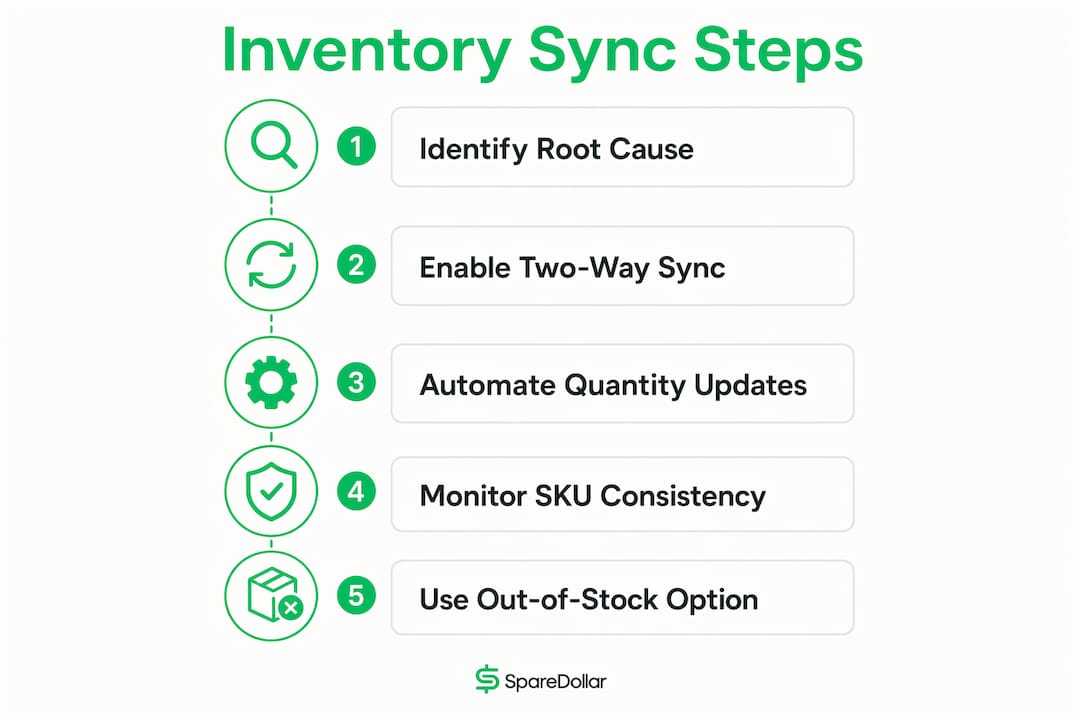
Stop oversells right now by centralizing your SKUs, enabling two-way real-time sync, and switching on eBay’s out-of-stock option instead of letting listings end when stock hits zero. Those three moves protect your listing history, your seller metrics, and your search visibility simultaneously.
The fastest path to zero oversells: Centralize your SKU records first, then sync outward to every channel. Pushing inventory from a single source of truth is the only way to stop the “sold two, only had one” problem for good.
Here is what you can do in the next 10–60 minutes:
- Enable the out-of-stock option in Seller Hub (Account > Site Preferences > Out-of-stock option). This keeps listings alive but hidden when quantity hits zero, preserving sales history and search momentum.
- Set a buffer of 2–3 units below your actual stock count on eBay to absorb sync lag between channels.
- Run a SKU mapping check — open your active listings and confirm every listing has a unique, consistent SKU. Unlinked or duplicate SKUs are the single most common cause of sync failures.
These three steps work because they remove the two root causes of oversells: stale quantity data and broken SKU references. Everything else in this article builds on that foundation.
Table of Contents
- Why does inventory management affect your eBay sales and visibility?
- What features should you demand from any eBay inventory tool?
- How do you check and edit inventory quantities on eBay?
- Which inventory workflow fits your current scale?
- How do you migrate to a sync tool without breaking your listings?
- What actually causes oversells, and how do you stop them?
- When should you stop using spreadsheets and upgrade?
- What eBay platform settings affect your inventory and visibility?
- Which solution should you choose right now?
- Key Takeaways
- The thing nobody tells you about inventory systems
- SpareDollar cuts the manual work out of eBay inventory
- Useful sources
- FAQ
Why does inventory management affect your eBay sales and visibility?
Accurate inventory is not just an operational checkbox. It directly shapes how often your listings appear in search results and how buyers experience your store.

eBay’s Cassini search algorithm rewards listings with complete item specifics, higher availability, and consistent sales velocity. Missing a required item specific can suppress a listing entirely. Keeping stock depth healthy on eBay matters for the same reason: listings with higher availability get more impressions, and complete item specifics can increase impressions by up to 12–15%.
The seller-facing consequences of poor inventory control compound fast. An oversell triggers a cancellation, which generates negative feedback, drops your defect rate, and can trigger a Below Standard warning. Each of those outcomes reduces your future visibility. You spend time resolving the problem instead of listing new products, and the listing that caused the oversell may have lost its sales history if you ended it instead of using the out-of-stock option.
The ROI from fixing this is real. One inventory optimization case study reported a 42% increase in monthly sales revenue, a 65% reduction in stockout frequency, and a 37% improvement in inventory turnover after addressing stockouts, forecasting, and SKU prioritization.
| Metric | Impact of Poor Inventory | Impact of Optimized Inventory |
|---|---|---|
| Search impressions | Suppressed by low stock and missing item specifics | Up to 12–15% increase from complete item specifics |
| Monthly sales revenue | Lost to oversells and stockouts | +42% in a documented case study |
| Stockout frequency | Frequent, disrupts sales velocity | -65% in a documented case study |
| Inventory turnover | Slow, capital tied up in wrong SKUs | +37% in a documented case study |
| Seller defect rate | Rises with each oversell cancellation | Stays low with real-time sync |
What features should you demand from any eBay inventory tool?
Not all inventory software treats eBay the same way. Some tools were built for Amazon first and bolt on eBay as an afterthought. Here is what actually matters for eBay-first workflows, ranked by priority.
Must-have features (get these first)
- Two-way real-time sync: Quantity changes on eBay must flow back to your central catalog, and vice versa. One-way sync is a half-solution that still causes oversells.
- SKU-based catalog with mapping: Every listing must tie to a canonical SKU. Without this, a sale on one channel has no way to decrement stock on another.
- Out-of-stock handling: The tool must support eBay’s out-of-stock option so listings hide rather than end when stock hits zero.
- Delta-only pushes: The eBay Inventory API separates inventory items (SKU records) from offers and listings. A good tool updates only what changed, rather than republishing the entire catalog, which preserves listing history and avoids duplicate-listing errors.
- Automatic item specifics mapping: eBay requires structured data fields that vary by category. A tool that auto-maps your product attributes to eBay’s required item specifics saves hours and prevents publication errors.
Nice-to-have features (add when you’re ready to scale)
- Variation group support: If you sell items with size, color, or other variants, the tool must handle variation groups correctly. Flat-listing tools break these.
- Per-channel pricing: Lets you set a different price on eBay versus Shopify or Poshmark without editing each listing manually.
- Bulk edit and barcode scanning: Speeds up catalog entry and corrections, especially for resellers with diverse SKU mixes.
- Multi-location fulfillment: Relevant once you split inventory across warehouses or use a 3PL.
- Sales and profit analytics: Helps you prioritize which SKUs to restock and which to liquidate.
Pro Tip: When evaluating any tool, ask specifically how it handles a quantity update for a variation group. If the answer is vague or requires a workaround, that tool will cause you problems at scale.
How do you check and edit inventory quantities on eBay?
The fastest way to check your current quantities is through Seller Hub. Go to Seller Hub > Listings > Active, find the item, and the quantity column shows your current stock. Click the quantity number directly to edit it inline for a single listing.
Editing a single listing
- Log in to eBay and go to Seller Hub.
- Click Listings in the top navigation, then select Active.
- Find the listing you want to update. Click the quantity number in the “Quantity available” column.
- Type the new quantity and press Enter. The change saves immediately.
Bulk editing quantities via CSV
- In Seller Hub, go to Reports > Downloads.
- Download your Active Listings report as a CSV file.
- Edit the quantity column for each affected SKU in Excel or Google Sheets.
- Go to Reports > Uploads and upload the revised file.
- eBay processes the file asynchronously. Bulk listing tools support up to 2,000 listings per upload for Pro sellers.
Enabling the out-of-stock option
- In Seller Hub, click your username or go to Account > Site Preferences.
- Scroll to Sell It Even If You Don’t Have It or the Out-of-stock option toggle.
- Enable it. From this point, any listing that reaches zero quantity hides from search rather than ending, and reactivates the moment you push quantity above zero.
Pro Tip: Before making any bulk edit, download a fresh Active Listings report and save it as a backup. If the upload goes wrong, you have a clean restore point.
Which inventory workflow fits your current scale?
The right workflow depends on how many orders you process and how many channels you sell on. Picking the wrong tier wastes either money (over-engineering a side hustle) or time (under-engineering a growing business).
Stage 1: Side-hustler (fewer than 50 orders per week)
A spreadsheet or eBay’s native Seller Hub tools are workable at this stage. Your daily task list looks like this:
- Check Seller Hub Active Listings each morning and adjust quantities after any overnight sales.
- Update your spreadsheet with purchases and sales at the end of each day.
- Run a weekly reconciliation: count physical stock, compare to your spreadsheet, correct any gaps.
The risk here is human error. One missed update causes an oversell. That is acceptable at low volume; it becomes expensive fast as you grow.
Stage 2: Growing seller (50–200 orders per week)

This is where spreadsheets become a liability. At 50–200 orders per week across two or more channels, manual reconciliation takes more time than it saves and sync-delay oversells become a weekly occurrence. The right move is a semi-automated tool with two-way sync and SKU mapping.
Weekly workflow at this stage:
- Automated sync handles quantity updates in near real-time.
- You review a sync error log daily (takes 5–10 minutes).
- Weekly: audit any SKUs flagged as unlinked or mismatched.
- Monthly: review analytics to identify slow-moving SKUs and adjust pricing or stock allocation.
Stage 3: Advanced multi-channel seller (200+ orders per week)
Full automation is not optional here. You need delta-based sync, multi-location inventory, and API-level integration. Workflow ownership shifts from “you doing it manually” to “you reviewing exceptions the system flags.”
- Automated sync runs continuously; you review exception reports.
- Reorder points trigger purchase orders automatically or via alerts.
- Quarterly: full SKU audit and channel allocation review.
How do you migrate to a sync tool without breaking your listings?
Migration is where sellers lose listing history and search momentum if they rush it. The goal is to go live without ending any active listings or triggering duplicate-listing errors.
Go-live checklist
- Audit your SKUs. Export your full Active Listings report. Identify any listings without a SKU, duplicate SKUs, or SKUs that don’t match your warehouse records. Fix these before you connect any tool.
- Map attributes to eBay item specifics. For each product category, confirm your catalog attributes map to eBay’s required and recommended item specifics. Missing mappings cause publication errors on first sync.
- Set buffer stock. Before enabling sync, reduce your eBay quantity by 2–3 units on fast-moving SKUs. This absorbs any lag during the transition window.
- Run a dry run. Most tools let you simulate a sync without pushing changes live. Use this to catch mapping errors and variation group issues before they affect real listings.
- Test edge cases. Specifically test: a variation group update, a quantity-zero scenario (does the out-of-stock option fire correctly?), and a multi-location stock split.
- Enable the out-of-stock option if you have not already done so.
- Go live and monitor the first 48–72 hours. Watch your sync error log closely. Check that quantity updates on one channel decrement correctly on eBay within your expected sync window.
- Rollback plan. Keep your pre-migration CSV export. If a bad sync pushes incorrect quantities, upload the backup CSV via Seller Hub Reports to restore known-good values, then pause the sync tool while you investigate.
Pro Tip: Use delta-only pushes from day one. Sending a full catalog push on every sync cycle is the most common migration mistake; it triggers duplicate-listing errors and can republish ended listings. The eBay Inventory API is built around updating inventory items separately from offers — a good tool respects that architecture.
What actually causes oversells, and how do you stop them?
Oversells come from three places: stale quantity data, race conditions at checkout, and broken SKU mapping. Each has a specific fix.
- Sync lag: Your tool updates eBay every 15 minutes, but two buyers purchase the last unit within that window on different channels. Fix: shorten your sync interval, set a buffer stock, and enable the out-of-stock option so eBay hides the listing the moment stock hits zero.
- Unlinked SKUs: A listing has no SKU, or the SKU in your tool doesn’t match the SKU on eBay. The sync has no anchor and ignores that listing. Fix: run a SKU audit before and after migration; flag any listing without a matched SKU as a priority repair.
- Returns not updating quantity: A return is processed but the quantity isn’t incremented back. Fix: confirm your tool has a returns-to-stock workflow, or add a manual step in your returns process to update quantity in Seller Hub.
- Manual CSV errors: A bulk upload with a typo sets a quantity to zero or to an impossibly high number. Fix: always validate your CSV against the backup export before uploading; use a diff tool to spot unintended changes.
- Multi-location misallocation: You have 10 units across two warehouses, but your tool allocates all 10 to eBay while another channel also draws from the same pool. Fix: set per-location allocation rules and keep a small reserve unallocated to any channel.
Pro Tip: Run a weekly 10-minute check: filter your Active Listings for any item with quantity = 1. These are your highest oversell risk. Either replenish stock, set a buffer, or pause the listing until you can restock.
When should you stop using spreadsheets and upgrade?
The honest answer: sooner than most sellers think. The break-even point is not about SKU count alone.
If you are spending more than 10 hours per month on manual inventory updates, reconciliation, or resolving oversells, the time cost almost certainly exceeds a mid-tier subscription. At $20–$50/month for most entry-level tools, you need to save fewer than two hours per month to break even, assuming a modest $15–$25/hour value on your time.
A simple way to check your own numbers:
- Count the hours you spent last month on inventory tasks (updating quantities, fixing oversells, reconciling channels).
- Multiply by your hourly rate or opportunity cost.
- Compare that number to the monthly subscription cost of the tool you are evaluating.
Most sellers who do this math for the first time are surprised by how much time and money manual processes can cost compared to subscription tools.
Beyond time, watch for these upgrade triggers:
- You sell on two or more channels and reconcile manually.
- You have had more than one oversell in the past 30 days.
- You spend time each week checking whether eBay quantities match your actual stock.
- You are approaching 50 orders per week and still using spreadsheets.
On pricing structure: most inventory tools charge either a flat monthly subscription (tiered by listing volume or order count), per-listing fees, or a credit-based model for one-time volume. During any trial, validate sync speed, delta handling, and how the tool maps your existing SKUs. A trial that only tests basic listing creation is not enough. Push a quantity update, process a simulated return, and check that your variation groups sync correctly before you commit.
See SpareDollar’s pricing page for a concrete example of how tiered subscription and listing-credit models work in practice.
What eBay platform settings affect your inventory and visibility?
A few Seller Hub settings have an outsized effect on how your inventory performs in search. Getting these right takes less than 30 minutes and pays off every day.
Key settings to enable and check
- Out-of-stock option: Account > Site Preferences. Enable this before you do anything else. It is the single most important setting for protecting listing history during stockouts.
- Item specifics completeness: In Seller Hub, go to Listings > Active and filter for listings with incomplete item specifics. eBay flags these. Fix them category by category, starting with your highest-volume SKUs.
- Variation group structure: If you sell variations (size, color, style), confirm each variation group is set up correctly in Seller Hub. Broken variation groups cause sync errors and suppress impressions.
- Seller Hub reports: Under Reports > Downloads, pull the Listing Quality report. This shows which listings have missing required item specifics, low impressions, or other visibility issues.
Finding Manage My Store
Manage My Store is accessible from the top navigation in Seller Hub under Store. From there you can edit store categories, manage promotions, and review store-level analytics. For inventory purposes, the more useful destination is Seller Hub > Listings, which gives you direct access to active, sold, and unsold listings with bulk-edit tools.
Pro Tip: Inventory depth and item specifics work together. A listing with 10 units in stock and complete item specifics gets more impressions than the same listing with 1 unit and missing fields. When you restock, update item specifics at the same time. Two improvements for the price of one.
Which solution should you choose right now?
For eBay-first sellers who also sell on other channels, the right tool is one built around eBay’s SKU/offer/listing architecture, not one that treats eBay as a secondary integration.
The criteria from earlier in this article point to a short list of requirements: two-way sync, delta-only pushes, automatic item specifics mapping, out-of-stock handling, and variation group support. SpareDollar is built specifically for this workflow. It handles eBay inventory sync with item specifics automation, supports per-channel pricing, and auto-delists when stock hits zero rather than ending the listing.
For your first 7–14 days of a trial, validate these specifically:
- Push a quantity update from your catalog and confirm eBay reflects it within your expected sync window.
- Test a variation group: update one variant’s quantity and confirm only that variant changes on eBay.
- Process a simulated return and confirm the quantity increments back correctly.
- Check that item specifics are mapped and populated correctly for at least one product category.
- Confirm the out-of-stock option fires correctly when a SKU hits zero.
When a custom ERP integration still makes sense: If you process thousands of orders per day across a dozen channels with a dedicated warehouse management system, a direct API integration with eBay’s Inventory API may be more appropriate than a SaaS tool. That threshold is well above 200 orders per week — most growing sellers are not there yet.
SpareDollar’s multi-channel features cover the full range from eBay-first sellers to those cross-listing to Poshmark, Depop, Mercari, and Shopify. If you are already on eBay and want to expand without rebuilding your catalog from scratch, that is exactly the use case it was designed for.
Key Takeaways
Accurate eBay inventory management requires real-time two-way sync, SKU-based catalog control, and eBay’s out-of-stock option enabled before you do anything else.
| Point | Details |
|---|---|
| Enable out-of-stock option first | Keeps listings alive and hidden at zero stock, preserving sales history and search momentum. |
| SKU mapping is the foundation | Every listing needs a unique, matched SKU before any sync tool can work correctly. |
| Upgrade at 50+ orders per week | Spreadsheets become a liability at 50–200 orders/week; automation prevents sync-delay oversells. |
| Item specifics lift impressions | Complete item specifics can lift impressions by a noticeable percentage. |
| SpareDollar for eBay-first sellers | SpareDollar automates item specifics mapping, delta sync, and out-of-stock handling for eBay-first multichannel workflows. |
The thing nobody tells you about inventory systems
Most sellers treat inventory management as a cost center. Something to fix when it breaks, not something to invest in before it does. That framing is backwards.
The sellers who grow fastest on eBay are not necessarily the ones with the best products or the lowest prices. They are the ones whose listings stay visible, stay accurate, and recover from stockouts in hours rather than days. That is an inventory system problem, not a sourcing problem.
The migration anxiety is real, but it is almost always worse in anticipation than in practice. The actual work of mapping SKUs and testing a sync takes a few hours. The ongoing benefit, fewer oversells, better impressions, less time spent on reconciliation, compounds every week. And if you are worried about breaking your listings during the switch, the rollback plan in this article (keep your CSV backup, use delta pushes, monitor the first 72 hours) handles the realistic failure modes.
One more thing: if you are still on spreadsheets and telling yourself you will automate “when you get bigger,” you are probably already big enough. The 50-orders-per-week threshold is not a hard line. It is a signal. If you have had two oversells in the past month, you are already past it.
SpareDollar was built for exactly this moment. Think of it as the tool that keeps your inventory from going “spare” on you. (Sorry. Had to.)
SpareDollar cuts the manual work out of eBay inventory
If you have read this far, you already know what needs to happen: centralize your SKUs, enable two-way sync, automate item specifics, and stop ending listings when stock runs out. SpareDollar does all of that in one place, built specifically for eBay sellers who also sell across other marketplaces.
You list once. SpareDollar pushes your listing to eBay with AI-drafted item specifics, correct category mapping, and per-channel pricing already set. When a sale happens anywhere, inventory decrements everywhere. When stock hits zero, the listing hides rather than ends. When you restock, it comes back live automatically.
The free trial is the right next step. In your first week, test a quantity sync, a variation group update, and a return-to-stock scenario. If those three things work correctly, you have found your inventory system. Start your eBay trial with SpareDollar and see how fast the oversells stop.
Useful sources
- eBay Listing Optimization: Item Specifics, Search Ranking, and Visibility — Covers how Cassini ranks listings, the role of item specifics completeness, and the out-of-stock option. Essential reading for understanding why inventory depth affects impressions.
- eBay Inventory Management: From Spreadsheets to Automation (Webgility) — Practical breakdown of seller growth stages, scale thresholds, and upgrade triggers. Useful for deciding when to move off manual tools.
- eBay Inventory API: from ERP catalog to listing (Ivan Capponi) — Technical guide to the SKU/offer/listing architecture and delta-based sync. Required reading for developers or sellers building a custom integration.
- Bulk listing tools (eBay Help) — Official eBay documentation on Seller Hub bulk tools, CSV uploads, and feed-based listing management. Use this for the specifics of what Pro sellers can do with bulk edits.
- How Inventory Optimization Helped an eBay Seller Increase Sales by 42% (RetailTantra) — Case study with concrete outcome data (+42% sales, -65% stockouts, +37% turnover). Useful for building an internal business case for upgrading your inventory system.
FAQ
How do you check inventory on eBay?
Go to Seller Hub, click Listings, then select Active. The quantity column shows your current stock for each listing, and you can click any quantity number to edit it inline.
How do you edit item quantity on eBay?
For a single listing, click the quantity number directly in Seller Hub > Listings > Active and type the new value. For bulk edits, download your Active Listings report from Seller Hub > Reports > Downloads, update the quantity column in the CSV, and re-upload via Reports > Uploads.
Where is Manage My Store on eBay?
Manage My Store is in Seller Hub under the Store tab in the top navigation. For inventory-specific tasks, Seller Hub > Listings gives you more direct access to active listings, bulk tools, and listing quality reports.
How do you manually manage inventory without a tool?
Export your Active Listings report from Seller Hub daily, update quantities in a spreadsheet after each sale, and re-upload the CSV. This works below 50 orders per week but becomes error-prone fast. Enable the out-of-stock option regardless of whether you use a tool, so zero-stock listings hide rather than end.
When should you automate eBay inventory management?
When you spend more than 10 hours per month on manual inventory tasks, sell on more than one channel, or have had more than one oversell in the past 30 days. At 50–200 orders per week, the time cost of manual reconciliation almost always exceeds the subscription cost of an automated tool.