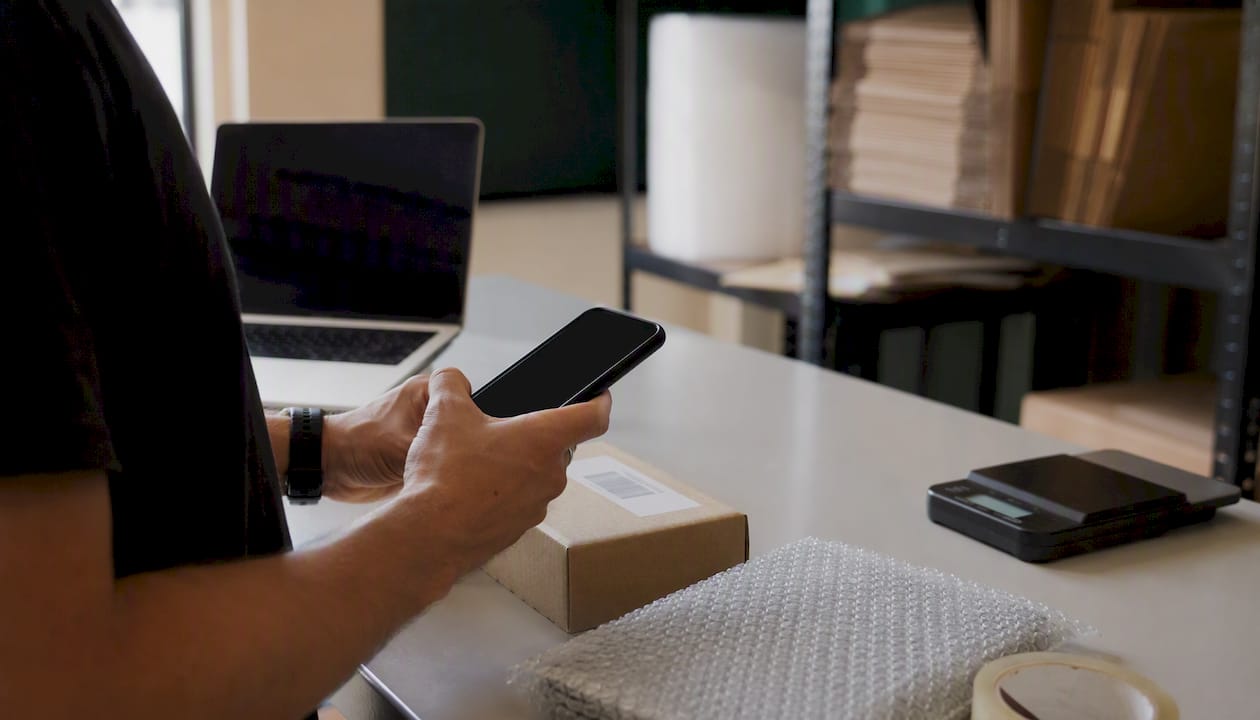
Yes, you can create an eBay listing by scanning a barcode. Open the eBay app, tap the camera icon in the listing flow, point it at a UPC, EAN, ISBN, or ASIN, and the app pulls matching product data from the eBay catalog to pre-fill your title and item specifics. The two fastest paths are:
- eBay app Scan-to-List (native, free, single-item): point, scan, review, publish.
- SpareDollar’s barcode-enabled workflow: scan or enter the identifier, get an AI-polished draft, then push it to eBay and other marketplaces in one shot.
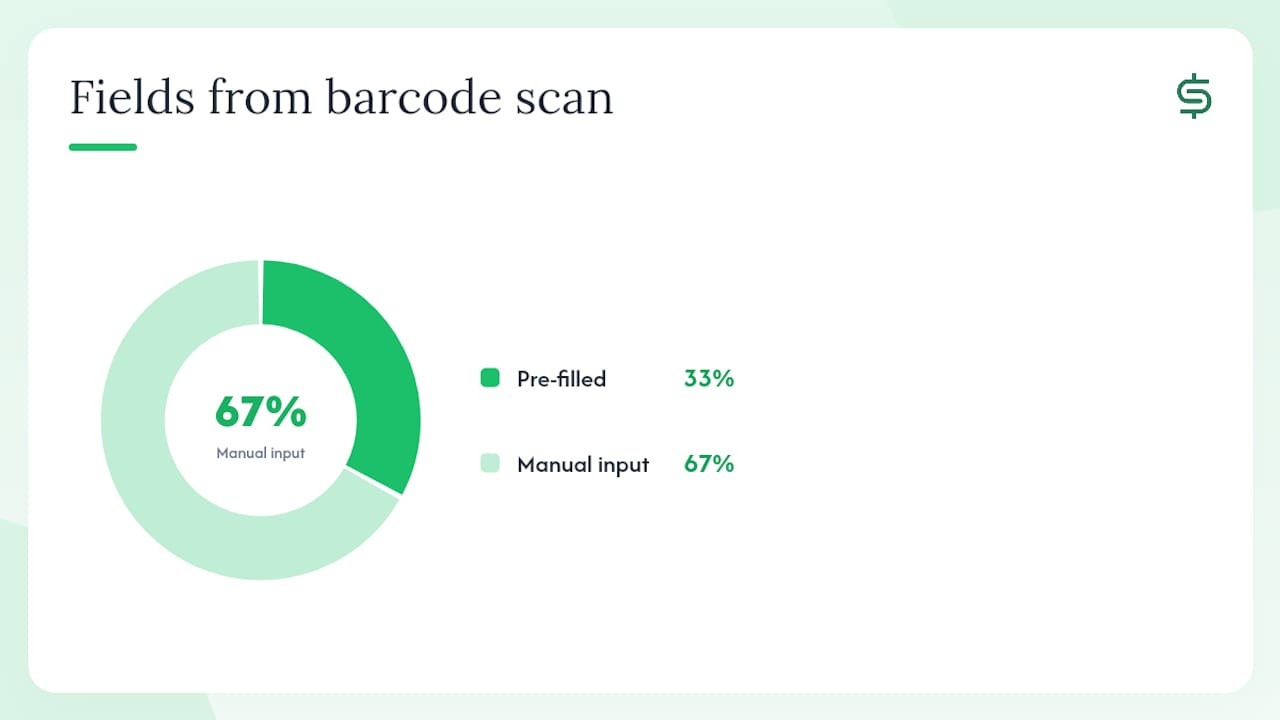
What a scan fills in: title, item specifics, and sometimes thumbnail images. What it does not fill in: your condition, your photos, your price, and your shipping settings. Those are always on you.
Key Takeaways
Scanning a barcode in the eBay app pre-fills title and item specifics, but condition, photos, price, and shipping always require manual input before publishing.
| Point | Details |
|---|---|
| Native scanner path | Open eBay app → Selling → List an item → camera icon to scan UPC, EAN, ISBN, or ASIN. |
| Supported identifiers | UPC (12-digit numeric), EAN, ISBN, and ASIN; enter “Does not apply” when no barcode exists. |
| Trading-card image scan | eBay’s Scan-to-List uses computer vision for Pokémon, Magic: The Gathering, and Yu-Gi-Oh! cards. |
| Always verify post-scan | Condition, photos, price, and shipping are never pre-filled — confirm before publishing. |
| SpareDollar for scale | Use SpareDollar for AI-polished drafts, bulk barcode input, and one-click cross-listing across marketplaces. |
Table of Contents
- How to scan a barcode inside the eBay app
- Which barcodes does the eBay scanner accept?
- What happens after a successful scan?
- Quick fixes when the barcode isn’t recognized
- How SpareDollar turns a barcode into a publishable draft
- The workflow that actually makes sense for most sellers
- SpareDollar makes barcode-to-listing worth doing at scale
- Sources
- FAQ
How to scan a barcode inside the eBay app
The path is short. Here is the exact flow on iOS or Android:
- Open the eBay app and tap Selling on the bottom navigation bar.
- Tap List an item (or the + icon, depending on your app version).
- On the listing-start screen, tap the camera icon (labeled “Search with camera” or similar).
- Hold your phone steady over the barcode. The scanner accepts UPC, EAN, ISBN, and ASIN codes.
- Wait for the lookup. A match usually surfaces in a few seconds and loads a suggested title plus pre-filled item specifics.
- Review the matched catalog entry. If it looks right, tap to continue into the full listing editor.
Community mentors confirm this same navigation path and note that the camera icon is the fastest entry point for catalogued items.
Pro Tip: Scan in natural daylight or under a bright lamp. Shadows across the barcode stripes are the single most common reason a scan fails. If the camera hunts and won’t lock, tap the screen directly on the barcode to force focus.
Which barcodes does the eBay scanner accept?
The scanner handles four identifier types:
- UPC (12-digit numeric): the standard for most U.S. retail goods. The UPC field in eBay listings is a 12-character numeric field; if your item has no barcode, you can enter “Does not apply.”
- EAN (13-digit): common on European and international products sold in the U.S.
- ISBN: books, textbooks, and some media.
- ASIN: Amazon’s identifier, accepted in some categories.
The scanner works best for new-in-box consumer goods, books, electronics, and sealed media — categories where eBay’s catalog has dense coverage. Used, rare, or customized items are a different story; the catalog match rate drops significantly for anything without a clean, unaltered barcode.
Special case: trading cards. eBay’s Scan-to-List feature uses computer vision (image matching, not just barcode reading) for select trading-card categories: Pokémon, Magic: The Gathering, and Yu-Gi-Oh!. eBay reports faster listing times for those supported cards compared with manual entry. You photograph the card face rather than scanning a barcode, and the system identifies the card and pre-fills specifics. For high-volume card sellers, that is a meaningful time cut per item.
Limits to know: Damaged or obscured barcodes fail consistently. Items not in eBay’s catalog return no match regardless of identifier quality. Unique, handmade, or heavily used items almost always need a manual listing.
What happens after a successful scan?
A match loads a draft. Here is what to do before you hit publish:
- Verify the title. Catalog titles are often generic (“Sony WH-1000XM5 Headphones”). Edit it to include condition keywords and the detail buyers search for.
- Check item specifics. Pre-filled specifics are a starting point, not a guarantee. Confirm brand, model, color, and any variation fields.
- Add your own photos. Catalog images show the product; your photos show your item. Buyers want to see the actual condition.
- Set condition accurately. This is never pre-filled. New, used, refurbished — pick the right one and add condition notes.
- Set price and shipping. The scan does not price your item. Check sold comps before you commit to a number.
- Choose your return policy, then publish.
If the scan returns a product with variations (size, color, storage capacity), select the exact variation that matches your item. If none match, create a new listing rather than forcing a wrong variation.
Pro Tip: Before publishing, run the draft through SpareDollar’s AI-assisted editing to replace flat catalog copy with a description that reads like a human wrote it. The AI draft still requires your approval before anything goes live, so you stay in control.
Quick fixes when the barcode isn’t recognized
Most scan failures have a simple cause. Work through these in order:
- Clean the barcode. Smudges, stickers, and creases break scanner reads. Wipe the surface and try again.
- Improve lighting. Move to a brighter spot or turn on your phone’s flashlight.
- Try different angles. Tilt the phone slightly; flat-on is not always optimal.
- Read the number manually. If the camera still won’t lock, read the printed digits under the barcode and type them directly into the search box or the UPC field in the listing editor. Community mentors recommend this as the most reliable fallback.
- No match after manual entry? The item is not in eBay’s catalog. Skip the scan entirely and build the listing manually with your own title and item specifics.
- Scanning a large batch? The native app handles one item at a time. For bulk scanning or cross-listing, a third-party tool handles that load far better than the native scanner.
For technically minded sellers, a public open-source project (ebay-barcode-lister) demonstrates a browser-based barcode scanner that posts drafts to eBay via the Sell APIs, using an Inventory Item → Offer → Publish flow. It is a useful reference if you are evaluating custom integrations.
How SpareDollar turns a barcode into a publishable draft
The native eBay scanner is fine for one item. For anything more, the workflow breaks down fast. SpareDollar picks up where the app leaves off.
Here is how the flow works:
- Input the barcode via camera scan, manual entry, or CSV import for bulk batches.
- AI drafts the listing: title, description, and item specifics are generated and polished automatically.
- Review and edit before anything is published. You approve every draft.
- Set per-channel pricing for eBay, Poshmark, Depop, Mercari, Shopify, and others from one screen.
- Publish or crosslist with one action. Inventory syncs automatically so you never oversell.
The real difference versus post-scan manual editing is consolidation. Instead of scanning on your phone, then opening a laptop to rewrite the title, then manually copying the listing to another platform, SpareDollar handles polishing and multi-marketplace distribution in one place. That matters most when you are listing ten or fifty items, not one.
For sellers scaling from phone scans to a more structured operation, reviewing ecommerce warehouse technology features can help you think through the hardware and software stack that supports higher-volume scanning.
| Workflow | Best for | Bulk support | AI draft polish | Cross-listing |
|---|---|---|---|---|
| eBay app Scan-to-List | Single catalogued items | No | No | No |
| SpareDollar | Single items, batches, cross-listing | Yes | Yes | Yes |
The workflow that actually makes sense for most sellers
The eBay scanner is genuinely useful. For a single, catalogued item — a sealed board game, a textbook, a pair of headphones still in the box — scan it, verify the specifics, add your photos, and publish. Done in under three minutes. No complaints.
The problem is that most small sellers are not listing one item. They are listing twenty, and half of them are used. The native scanner was not built for that. It stalls on anything rare or worn, it cannot polish a description, and it definitely cannot push your draft to Poshmark while it is at it.
Use the eBay scan for quick single-item wins on common catalogued goods. Use SpareDollar when you want a draft that is actually ready to publish, or when you are listing across more than one platform. For handmade, custom, or truly unique items, skip the scanner entirely and write the listing yourself — no barcode is going to capture what makes your item worth buying.
And look, if your barcode scanner is also your TV remote, that is a different problem. But for everything else, the workflow above has you covered.
SpareDollar makes barcode-to-listing worth doing at scale
Scanning a barcode gets you a rough draft. SpareDollar turns that rough draft into something you would actually be proud to publish. Enter a barcode, get an AI-polished listing with accurate item specifics, then push it to eBay and every other marketplace you sell on — from one dashboard. Every draft requires your approval before it goes live, so the AI does the heavy lifting and you make the final call.
Start a free trial at SpareDollar and see how fast a barcode becomes a live, cross-listed product.
Sources
- Selling with the eBay app (eBay help)
- Scan to List
- Ask a Mentor: How do you list items using bar codes?
- rossspry/ebay-barcode-lister
FAQ
Can I create an eBay listing using a barcode?
Yes. In the eBay app, go to Selling → List an item, tap the camera icon, and scan a UPC, EAN, ISBN, or ASIN. The app pulls matching data from the eBay catalog to pre-fill your title and item specifics.
What is the best way to scan cards for an eBay listing?
Use eBay’s Scan-to-List feature, which applies computer vision to match Pokémon, Magic: The Gathering, and Yu-Gi-Oh! cards by image rather than barcode. eBay reports faster listing times for those supported categories compared with manual entry.
Where is the UPC field in an eBay listing?
The UPC field appears in the item specifics section of the listing editor. It accepts a 12-digit numeric code; if your item has no barcode, enter “Does not apply” in that field.
How do I scan barcodes on eBay when the scan fails?
Read the printed number under the barcode and type it manually into the search box or the UPC field. If no catalog match appears after manual entry, the item is not in eBay’s catalog and you will need to build the listing from scratch with your own title and item specifics.