
For most U.S. eBay sellers, the right import method comes down to three routes: eBay Seller Hub Reports (CSV/XLS) for small batches under 50 listings, a managed SaaS like SpareDollar for repeatable mid-to-high volume and multi-channel sync, and eBay’s Merchant Integration Platform or Inventory API for fully automated, developer-driven workflows at scale. Pick the wrong one and you’ll spend more time fixing broken rows than actually selling.
Here’s the quick decision map:
- Under 50 listings, one-time upload: Use Seller Hub Reports / File Exchange. Free, no setup, works today.
- 50–500 listings, repeated imports, multi-channel: Use a managed SaaS (SpareDollar). AI mapping, auto-sync, no flat-file headaches.
- 500+ listings or real-time inventory sync: Use eBay’s Inventory API, Sell Feed API, or MIP. Requires developer time and OAuth setup.
- Migrating to Shopify or another storefront: Export eBay CSV, map fields to the destination platform, import as drafts, verify before publishing.
- Oversell risk is high: Any method needs inventory sync enabled. SaaS tools handle this automatically; CSV uploads do not.
Table of Contents
- How do you bulk import eBay listings using Seller Hub Reports?
- Which eBay API or feed option is right for your workflow?
- How do you export your eBay listings to CSV?
- How do you import eBay listings into Shopify?
- Why use SpareDollar to import, map, and sync your eBay listings?
- What causes import errors, and how do you fix them?
- CSV field checklist: what your import file needs to succeed
- CSV vs. API vs. SaaS: which import method fits your situation?
- Key Takeaways
- The part most sellers get wrong about bulk imports
- SpareDollar cuts the CSV friction sellers deal with every week
- FAQ
How do you bulk import eBay listings using Seller Hub Reports?
Seller Hub Reports is eBay’s native bulk listing tool, and it’s free. The catch: your CSV has to be exactly right, or rows get skipped without much explanation. Think of it as eBay’s way of saying, “We trust you — but verify your commas.”
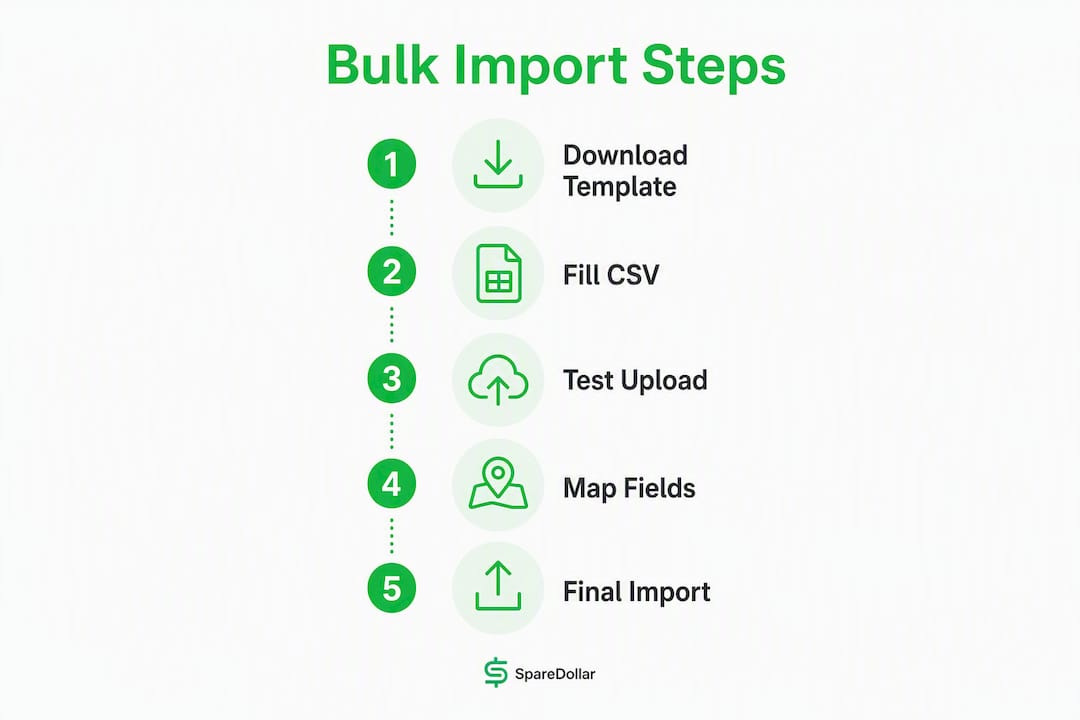
Step-by-step:
- Go to Seller Hub → Reports → Upload.
- Download the bulk listing template (CSV or XLS format) from the Reports page.
- Fill in required fields:
CustomLabel(your SKU),Title,StartPrice, andQuantity. Add recommended fields such asCategory,ConditionID, and image URLs. - Save the file as UTF-8 encoded CSV.
- Upload via the Reports interface and submit.
- Check the Task Center for the import report. Any skipped rows appear there with an error code.
- Fix errors in the source file, re-upload only the failed rows, and confirm live listing counts in Active Listings.
Common limits and gotchas: eBay’s bulk upload file size limit is 15 MB per file. Mandatory fields vary by category — electronics require more item specifics than clothing. If a row is missing a required field, eBay skips it silently in the upload but flags it in the Task Center report. Draft listings don’t go live automatically; you publish them from the Drafts tab.
Pro Tip: Run a single-row test import before uploading your full file. One row lets you confirm headers, field mapping, and category requirements in under two minutes — far faster than debugging a 300-row file after the fact.
Which eBay API or feed option is right for your workflow?
When CSV uploads feel like trying to parallel park a semi-truck, eBay’s programmatic options take over. The three main routes are the Merchant Integration Platform (MIP), the Inventory API, and the Sell Feed API. Each serves a different use case.
- Merchant Integration Platform (MIP): — Best for high-volume sellers who need scheduled, automated listing creation and updates. MIP uses a feed-based model where you push product data in bulk on a schedule. It’s designed for enterprise-level catalogs and requires formal onboarding with eBay.
All three require OAuth 2.0 authentication, token refresh handling, and familiarity with eBay’s developer portal. Pagination matters too: API responses return results in pages, and reconciliation behavior depends on whether you’ve fetched all pages before triggering a sync. Per ChannelWeave’s API documentation, reconciliation only applies when all pages have been fetched — partial fetches leave your data in an inconsistent state.
If you’re not a developer and don’t have one on staff, MIP and the Inventory API will cost you more in setup time than they save. That’s the honest answer. For most sellers without a dedicated engineering resource, a SaaS tool that wraps these APIs is the practical path.
How do you export your eBay listings to CSV?
Exporting to CSV is the fastest way to pull all your listing data for local editing, migration, or backup. The process takes about two minutes once you know where to look.
Steps:
- Go to Seller Hub → Reports → Download.
- Select Active Listings (or the listing status you need).
- Choose CSV or XLS format and click Download.
- Save the file locally before editing.
The export file typically includes these columns: ItemID, CustomLabel (SKU), Title, Description, StartPrice, Quantity, CategoryID, PicURL, variation columns, and item specifics fields. Not every category exports the same columns, so check the header row before assuming a field is present.
Pro Tip: Before editing your export file, normalize your SKUs and verify that image URLs are publicly accessible. If you plan to reconcile or relist items, keep the original ItemID column intact — it’s your anchor for matching existing listings to updated data.

Where imports commonly fail after an export-and-reimport cycle: missing CategoryID, absent required item specifics, and image URLs that have expired or gone private. Fix those three before touching anything else.
How do you import eBay listings into Shopify?
You can migrate eBay listings into Shopify by exporting a CSV from eBay, mapping the fields to Shopify’s product schema, and importing as drafts before publishing. The Shopify migration guide for eBay sellers covers the platform-specific steps, but the field mapping is where most sellers lose time.
Shopify import walkthrough:
- Export your eBay listings as CSV (see the section above).
- In Shopify Admin, go to Products → Import.
- Upload your CSV file (rename it something recognizable, like
eBayProductDownload.csv). - Map columns to Shopify’s schema in the column-mapping step.
- Import as Draft — never publish directly until you’ve verified a test product.
- Review one product end-to-end: images, variants, price, inventory policy.
- Publish in batches after verification.
Field mapping checklist:
CustomLabel→Variant SKUTitle→TitleDescription→Body (HTML)CategoryID→Product Typeor Collection (manual assignment)PicURL→Image Src(must be an absolute, publicly accessible URL)- Variation columns →
Option1 Name,Option1 Value, etc. StartPrice→Variant PriceQuantity→Variant Inventory Qty
Common mapping pitfalls: SKU mismatches between eBay and Shopify break inventory sync from day one. Image URLs that require eBay login to access will import as broken images. Item specifics from eBay (Brand, Size, Material) don’t map to a native Shopify field — you’ll need metafields or tags. Fix these before your first bulk publish, not after.

Why use SpareDollar to import, map, and sync your eBay listings?
For sellers who want to scale past one-off CSV uploads, a managed SaaS removes the flat-file friction that eats hours every week. SpareDollar specifically is built around eBay-first integration, which means the mapping logic accounts for eBay’s category requirements and item specifics out of the box — not as an afterthought.
Onboarding flow:
- Connect your eBay account — via OAuth (takes about 60 seconds).
What matters for import success:
For a mid-size catalog of a few hundred SKUs, connecting and importing takes minutes. Mapping configuration and first publish typically runs a few hours, depending on category complexity. That’s a one-time setup cost, not a recurring one.
SpareDollar also offers bulk listing workflows with AI-powered drafting, so you’re not just importing existing listings — you’re building a repeatable system for every new product you add.
[Screenshot placeholder: SpareDollar import mapping screen showing field-to-field column assignment]
[Screenshot placeholder: SpareDollar Drafts view with AI-suggested item specifics highlighted]
[Screenshot placeholder: SpareDollar Task Center showing failed import rows with error details]
What causes import errors, and how do you fix them?
The top three failure classes when you import eBay listings are: missing required fields, category or item-specific mismatches, and SKU or variant problems. Most errors are fixable in under 10 minutes once you know where to look.
Troubleshooting workflow:
- Open the Task Center or Import Report immediately after upload.
- Read the error code for each failed row — eBay’s error messages are specific enough to act on.
- Fix the source CSV for only the failed rows.
- Re-import a single test row from the corrected file.
- Confirm the test row appears in Drafts or Active Listings.
- Upload the remaining corrected rows.
Common errors and what they mean:
- Skipped row: A required column is missing or empty. Check
CategoryID,ConditionID, and required item specifics for that category. - Failed publish: An item specific value is invalid for the selected category. eBay’s category tree changes periodically — verify the category ID is current.
- Image error: The URL is inaccessible, requires authentication, or returns a non-image content type. Test every image URL in a browser in incognito mode before import.
- Variant error: Variation columns are mismatched or a parent SKU is missing. Every variation needs a parent row with
Relationship=ParentItem.
Pro Tip: Keep a consistent SKU convention across all your channels — something like BRAND-COLOR-SIZE. Verify SKU uniqueness before every bulk import using a simple spreadsheet deduplication check. Duplicate SKUs are the fastest path to oversells.
If a bulk update goes badly wrong, unpublish the affected listings from the Active Listings tab before fixing the source data. Leaving incorrect listings live while you troubleshoot risks orders you can’t fulfill. For ongoing oversell prevention, real-time inventory sync is the only reliable safeguard.
CSV field checklist: what your import file needs to succeed
Include these columns to avoid the most common import rejections. Missing a required field means the row gets skipped; missing a recommended field means the listing may go live but underperform in search.
| Field | Required or Recommended | Notes |
|---|---|---|
CustomLabel (SKU) |
Required | Must be unique per listing |
Title |
Required | — |
StartPrice |
Required | Numeric, no currency symbol |
Quantity |
Required | Integer |
CategoryID |
Recommended | Use eBay’s current category ID |
ConditionID |
Recommended | — |
PicURL |
Recommended | Absolute URL, publicly accessible |
Description |
Recommended | Plain text or HTML |
| Variation columns | Recommended | Required if listing has variants |
| Item Specifics | Recommended | Required for some categories |
Sample CSV row (headers + one data row):
CustomLabel,Title,StartPrice,Quantity,CategoryID,ConditionID,PicURL
SHOE-NKE-BLK-10,Nike Air Max 90 Black Size 10,89.99,3,15709,3000,https://yourcdn.com/shoe-blk-10.jpg
Pro Tip: Always save your CSV as UTF-8 encoded. Remove stray commas from description fields by wrapping the description column in double quotes. Every image URL should be direct and public — test it in an incognito browser tab before you upload.
CSV vs. API vs. SaaS: which import method fits your situation?
Pick CSV for small, infrequent batches. Pick a SaaS for repeatable mid-to-high volume with multi-channel sync. Pick the API for fully automated, large-scale, or custom integrations. The decision matrix below maps the key dimensions.
| Dimension | CSV (Seller Hub Reports) | API / MIP / Sell Feed | SaaS (SpareDollar) |
|---|---|---|---|
| Best for | Under 50 listings, one-time or occasional | 500+ listings, real-time sync, custom workflows | 50–500+ listings, multi-channel, recurring imports |
| Technical difficulty | Low — spreadsheet skills required | High — developer + OAuth required | Low — guided UI, no code |
| Cost | Free | Developer time + eBay API access | Subscription or listing credits |
| Sync capability | None (manual re-upload) | Real-time (Inventory API) or scheduled (MIP) | Scheduled auto-sync, auto-delist on sale |
| Mapping and data cleaning | Manual — you edit the CSV | Custom code required | AI-assisted field mapping, templates |
| Channel coverage | eBay only | eBay only (via eBay APIs) | eBay, Poshmark, Depop, Mercari, Shopify |
Use-case examples:
Solo reseller with 30 SKUs: CSV upload via Seller Hub Reports. Download the template, fill it in, upload. Done in an afternoon.
Boutique with 500 SKUs across eBay and Poshmark: SpareDollar. Connect both accounts, import existing listings, configure sync rules. The AI mapping handles item specifics; the auto-delist prevents oversells when something sells on Poshmark first.
Enterprise with 10,000+ SKUs and a dev team: eBay Inventory API or MIP. Build a custom integration that pushes inventory updates in real time and reconciles via the feed. Budget for ongoing maintenance as eBay’s API versions evolve.
Transition path: Most sellers start with CSV, hit a wall around 100–200 SKUs when manual updates become unsustainable, move to a SaaS, and only graduate to a custom API integration if they outgrow the SaaS’s feature set. That progression is normal, and each step is a genuine upgrade.
Key Takeaways
Bulk importing eBay listings successfully requires matching your method to your volume, choosing the right tool for mapping accuracy, and verifying every import in the Task Center before listings go live.
| Point | Details |
|---|---|
| Match method to volume | CSV works for under 50 listings; SaaS fits 50–500+; API suits 500+ with developer resources. |
| SKU hygiene is non-negotiable | Unique, consistent SKUs prevent oversells and keep inventory sync accurate across channels. |
| Task Center is your safety net | Check it immediately after every bulk import to catch skipped rows and failed publishes. |
| Required fields prevent rejections | At minimum, include SKU, title, price, quantity, and category ID in every import file. |
| SpareDollar for multi-channel sync | SpareDollar automates mapping, item specifics, and sync across eBay, Poshmark, Depop, Mercari, and Shopify. |
The part most sellers get wrong about bulk imports
Most articles on this topic treat bulk importing as a speed problem. Get the file right, upload fast, done. That framing misses the actual bottleneck.
The real issue is data integrity downstream. A listing that imports successfully but has the wrong category ID, a missing item specific, or a broken image URL will sit in search results and convert at a fraction of what it should. You won’t see the problem in the Task Center because the listing technically went live. You’ll see it in your impressions and sell-through rate three weeks later.
This is why AI-assisted mapping matters more than upload speed. When a tool fills in item specifics based on category context during import, it’s not just saving you a few keystrokes. It’s preventing the silent failures that cost you sales without ever triggering an error message.
The other thing sellers consistently underestimate: the transition from spreadsheet edits to a SaaS workflow with templates and a task center isn’t just a time saver. It’s a different operating model. You stop reacting to broken rows and start managing by exception. That shift is worth more than any individual feature.
And yes, setting up SKU conventions feels like busywork until the day you oversell the same item on two channels simultaneously. Then it feels like the most important thing you never did. (Dad joke fully intended — SKU hygiene: not glamorous, but it keeps the family together.)
SpareDollar cuts the CSV friction sellers deal with every week
Cleaning flat files, chasing broken image URLs, and re-uploading corrected rows is a real cost — not just in time, but in the mental overhead of managing it alongside everything else a seller handles. SpareDollar is built specifically for eBay sellers who want to stop doing that manually.
Connect your eBay account in about 60 seconds via OAuth. SpareDollar imports your existing listings automatically, applies AI-assisted field mapping to fill item specifics, and flags anything that needs your attention before it goes live. From there, configure sync rules once and let the platform push updates across eBay, Poshmark, Depop, Mercari, and Shopify on your schedule.
The free trial gives you enough runway to connect your account, run your first import, and see the mapping validation in action. If your catalog is mid-size and you’re listing across more than one channel, the subscription pays for itself the first time it prevents an oversell. For lower-volume sellers, one-time listing credits are available so you’re not locked into a monthly commitment.
See which marketplace integrations SpareDollar supports and start your import today.
Helpful resources for eBay listing imports
These official and third-party sources are worth bookmarking if you’re going deeper on any of the methods covered above.
- eBay Bulk Listing Tools — Seller Center: The official eBay documentation for Seller Hub Reports, File Exchange, and the bulk listing template. Start here for CSV field requirements and category-specific rules.
- Migrate from eBay — Shopify Help Center: Shopify’s own guide for importing eBay product data into a Shopify store, including field mapping and draft review steps.
- SpareDollar Marketplace Integrations: Overview of which channels SpareDollar supports for import, sync, and crosslisting — useful for evaluating whether it covers your specific marketplace mix.
- SpareDollar Bulk Listing Guide: A deeper look at AI-powered bulk listing workflows within SpareDollar, including how templates and mapping rules reduce per-listing setup time.
- Multi-Channel Inventory Management for eBay Sellers: Practical guidance on syncing inventory across eBay and other channels to prevent oversells — directly relevant after any bulk import.
For developer implementations, eBay’s official API reference and MIP documentation are the authoritative sources. Start with the Inventory API if you need real-time sync, or the Sell Feed API if you’re building a batch-based pipeline. Both require OAuth setup and are documented in eBay’s developer portal.
FAQ
How do I export my eBay listings to CSV?
Go to Seller Hub → Reports → Download, select Active Listings, choose CSV or XLS format, and click Download. The file includes fields like ItemID, SKU, title, price, quantity, category ID, and image URLs.
Can I import eBay listings into Shopify?
Yes. Export your eBay listings as a CSV, then use Shopify’s Products → Import flow to upload the file, map columns to Shopify’s schema, and import as drafts before publishing. The Shopify migration guide covers the full field mapping process.
What are the required fields for a successful eBay bulk import?
At minimum, your CSV needs SKU (CustomLabel), Title, StartPrice, and Quantity. Missing any of these causes the row to be skipped and flagged in the Task Center import report.
How much does eBay take from a $10,000 sale?
eBay’s final value fees vary by category and seller level. Check eBay’s current fee schedule in Seller Hub for your specific category rate.
Do buyers pay import fees on eBay?
For international purchases, buyers may be responsible for customs duties and import taxes depending on their country’s regulations and the item’s declared value. eBay’s Global Shipping Program handles customs documentation for enrolled sellers, but the buyer still pays any applicable import fees at delivery.